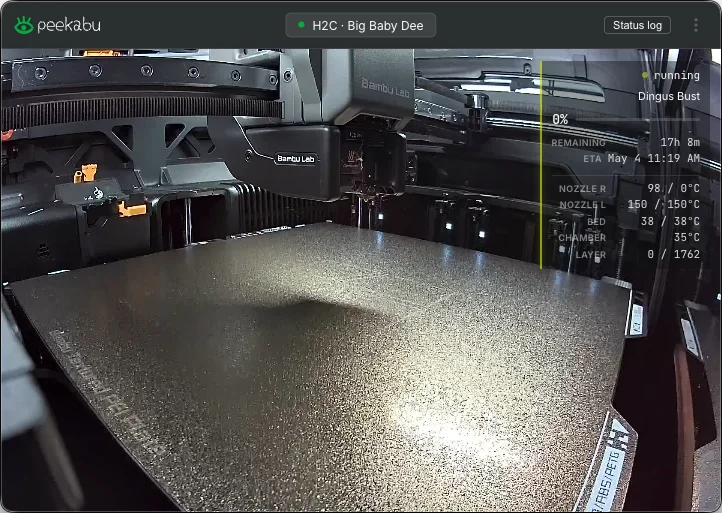
Peekabu is a free Mac app for keeping an eye on a Bambu Lab 3D printer. It lives in the menu bar, that row of little icons across the top of your screen, and it’s what I use to check on my own printer from the Mac.
Normally that means Bambu Studio, the slicer, which is where you prep a model and send it to the printer, or Bambu Handy, the phone app. Both work, but you have to go open them. Peekabu puts the important stuff one click away instead: an icon that opens into what’s printing, how far along it is, how hot everything is, and a live view of the build plate.
What it shows
- Live progress, time remaining, layer count, and nozzle, bed, and chamber temperatures
- Live camera through the printer’s own RTSPS stream, no cloud relay
- macOS notifications when a print finishes or the printer throws an action-required HMS warning (Bambu’s error and health alerts)
- A per-print status log you can export
- Multiple printers with a one-click switcher
No controls yet
It’s a monitor, not a remote. No pause, resume, or stop. Bambu’s LAN protocol blocks third-party command messages in Standard Mode, so controls would need a Bambu Cloud OAuth login (signing in with your Bambu account through their servers), and this app doesn’t carry one. Use Handy or Studio for that. Controls are on the roadmap, along with stills, timelapses, and streaming the camera feed to Twitch or YouTube. Those are things I might add if I feel like it. No timeline, no promises.
Requirements
- Apple Silicon Mac, so one with an M-series chip, on macOS 12 Monterey or later
- A Bambu Lab X1C, X1E, H2D, H2S, or H2C
- LAN Only Liveview switched on in the printer’s settings
That last toggle sounds like LAN-only mode, and it isn’t. Your printer stays on the cloud and Handy keeps working. It just also lets your local network see the camera. It’s usually somewhere under Settings, then General or Network, and the Bambu wiki has the exact spot for each one.
Get the .dmg
Version 1.0.0 is the first public release. Grab the .dmg from the releases page, drag Peekabu to Applications, launch. It checks for updates on launch and from the settings menu, downloads them in the background, and installs on next quit. So after the first one you shouldn’t have to do that again.
Closed-source freeware, meaning it’s free but the code isn’t public. Free for personal, non-commercial use. You can pass around the unmodified bundle.